Quick answer: Automated alerts watch your solar system for you and send a message the moment something goes wrong. Most modern inverters and monitoring apps can send push notifications, emails or text messages when production drops, the inverter reports a fault, or the system goes offline. Set up alerts for zero production during daylight, a production drop of 20% or more compared with a normal day, inverter error codes, and loss of communication. Keep the thresholds realistic so you get useful warnings, not a phone full of false alarms — and always check the monitoring app before climbing on the roof or touching any electrical equipment.
Contents
- Why Automated Alerts Matter
- What Alerts Can Catch (and What They Cannot)
- Types of Alerts: App, Email and SMS
- Before You Start: 6 Checks
- How to Set Up Alerts in Your Monitoring App
- How to Set Up Email Alerts
- How to Set Up SMS and Push Alerts
- Choosing Sensible Alert Thresholds
- Which Alerts to Switch On First
- How to Test Your Alerts
- Reducing False Alarms
- What to Do When an Alert Fires
- Advanced Options: Third-Party Monitoring
- Safety Warnings
- When to Call a Professional
- FAQs
- Conclusion
Why Automated Alerts Matter
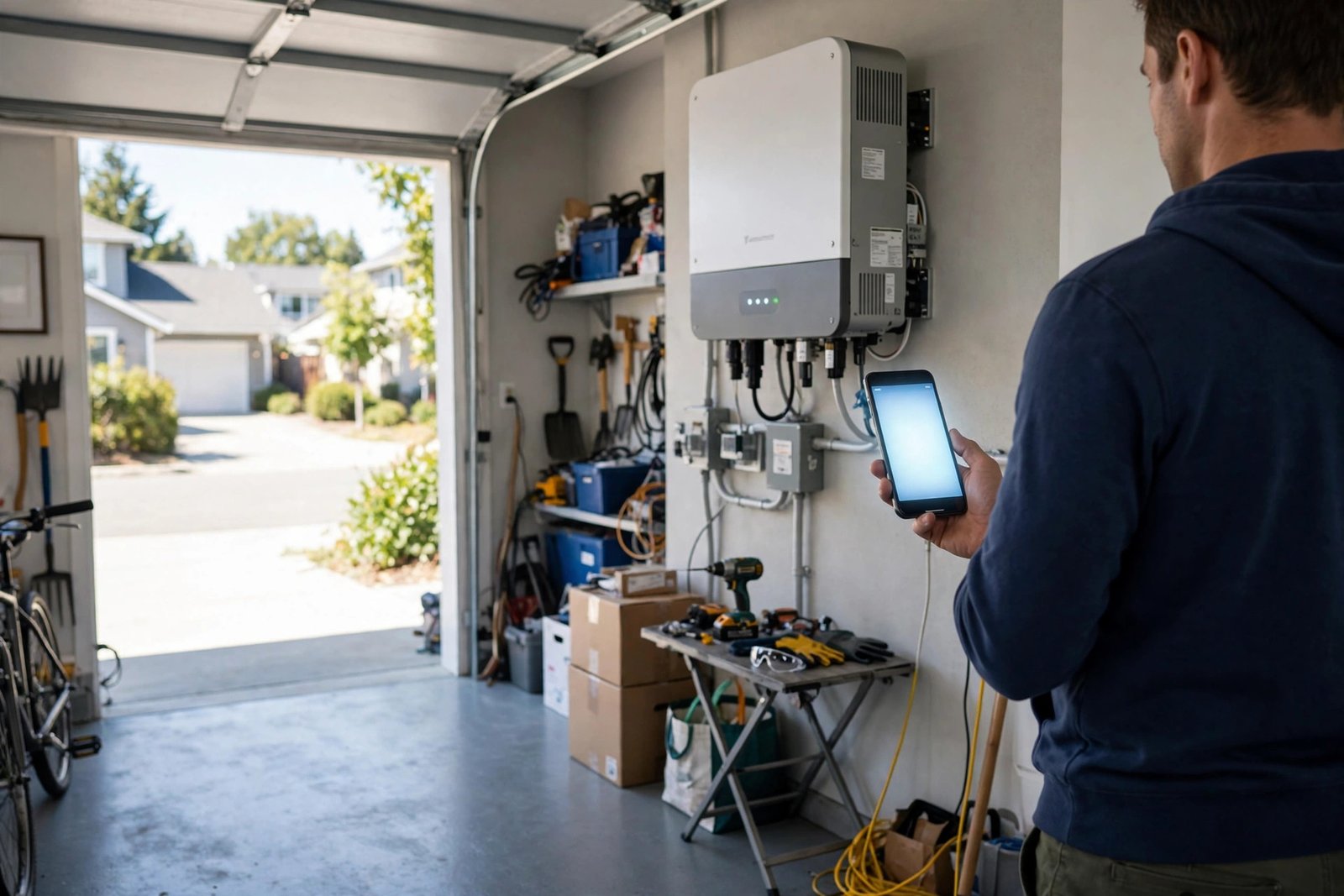
Most solar systems fail quietly. A panel string stops working, an inverter trips on a fault, or the monitoring gateway loses its Wi-Fi connection — and nothing in your home changes. The lights stay on, because the grid takes over silently. Many homeowners only discover the problem weeks or months later, when they notice a higher electricity bill or check the monitoring app by chance.
Automated alerts fix this. Your inverter or monitoring system watches production, voltage, temperature and communication around the clock, and it contacts you the moment a reading looks wrong. A fault caught on day one usually means a small repair. The same fault caught three months later can mean lost generation, a bigger repair, and in some cases damage that could have been avoided.
Alerts are also useful for owners who travel, rent out a property, or simply do not check their solar app every day. The system becomes its own watchdog. Setting them up takes 15 to 30 minutes, costs nothing on most systems, and is one of the highest-value jobs you can do for a solar installation.
What Alerts Can Catch (and What They Cannot)
Alert systems are good at catching sudden, clear changes. They are less good at slow, gradual problems. Understanding the difference helps you set realistic expectations.
Alerts are good at catching
- Zero production during daylight: the system produces nothing on a sunny day — often an inverter trip, a blown fuse, or a grid fault.
- Sudden production drops: output falls sharply compared with the same time yesterday or a normal day, pointing to a failed string, a tripped breaker, or heavy shading from a new obstruction.
- Inverter error codes: the inverter reports a fault such as an isolation fault, grid overvoltage, or overheating. See our guide to common solar inverter error codes for what the most frequent codes mean.
- Communication loss: the monitoring gateway or inverter stops reporting data, so the app shows the system as offline.
- Battery problems: on hybrid systems, alerts can warn of a battery that stops charging, a low state of charge, or a battery fault.
- Grid disconnection: the inverter disconnects from the grid and stops exporting power.
Alerts are less good at catching
- Slow degradation: a panel losing a small amount of output each year will not trigger a threshold alert. Regular reading of your monitoring data catches this — see our guide on reading your solar monitoring data to spot hidden faults early.
- Dirty panels: a gradual build-up of dust or bird droppings reduces output slowly and rarely trips an alert.
- Small underperformance: a single panel underperforming by a few percent is usually invisible to system-level alerts, though panel-level monitoring (microinverters or optimisers) can catch it.
The practical answer is to combine alerts with a quick weekly glance at your monitoring app. Alerts catch the sudden faults; your own checks catch the slow ones.
Types of Alerts: App, Email and SMS
Most solar systems offer at least one of these three channels. Each has strengths and weaknesses, and many owners use two at once.
Push notifications (app alerts)
These arrive on your phone through the manufacturer’s monitoring app. They are usually instant and free, and you can tap them to open the app straight to the fault. The drawback is that they only work if the app is installed, signed in, and allowed to send notifications — and if your phone has an internet connection.
Email alerts
Email alerts go to one or more addresses you choose. They are useful because they create a written record with a date and time, which helps when you need to report a fault to your installer or make a warranty claim. The drawback is speed: email can sit unread for hours, and some inboxes filter automated messages into spam.
SMS and text alerts
Some manufacturers and third-party monitoring services offer text messages. These are the most reliable way to reach you quickly, because a text arrives even when you are not looking at your apps. The drawback is cost: some services charge a small fee, and some only offer SMS in certain countries.
Our recommendation: switch on push notifications as your first channel, add email as a backup, and add SMS only if your system offers it free or if the property is rented out or left empty for long periods.
Before You Start: 6 Checks
Alerts only work if the monitoring side of your system is healthy. Run through these checks first.
- Your monitoring app works. Open the app and confirm it shows live or recent production data. If the app is offline or not updating, fix that first — see our guide on reconnecting a solar monitoring app that is offline.
- Your inverter is registered. The inverter or gateway must be linked to your monitoring account. If you bought the house with solar already installed, check with the previous owner or the installer that the account is in your name.
- Notifications are allowed. On your phone, check that the monitoring app has permission to send notifications, and that your phone is not silencing them (battery-saver modes and “do not disturb” settings can block them).
- Your contact details are current. Check the email address and phone number on your monitoring account. Alerts sent to an old address are worse than no alerts at all, because they create a false sense of security.
- Your firmware is up to date. Some alert features only appear in newer firmware versions. See our guide on updating your solar inverter firmware.
- Know your system size. Write down your system’s rated size in kilowatts (kW) and a typical daily output figure for this season. You will need these numbers to set sensible thresholds later.
How to Set Up Alerts in Your Monitoring App
Every manufacturer organises its menus differently, but the pattern is almost always the same. These steps work for most major inverter brands.
- Open the monitoring app and sign in to your account.
- Find the alerts or notifications section. Look under Settings, Notifications, Alerts, or your profile menu. Some apps put it under the individual inverter or site settings rather than the main menu.
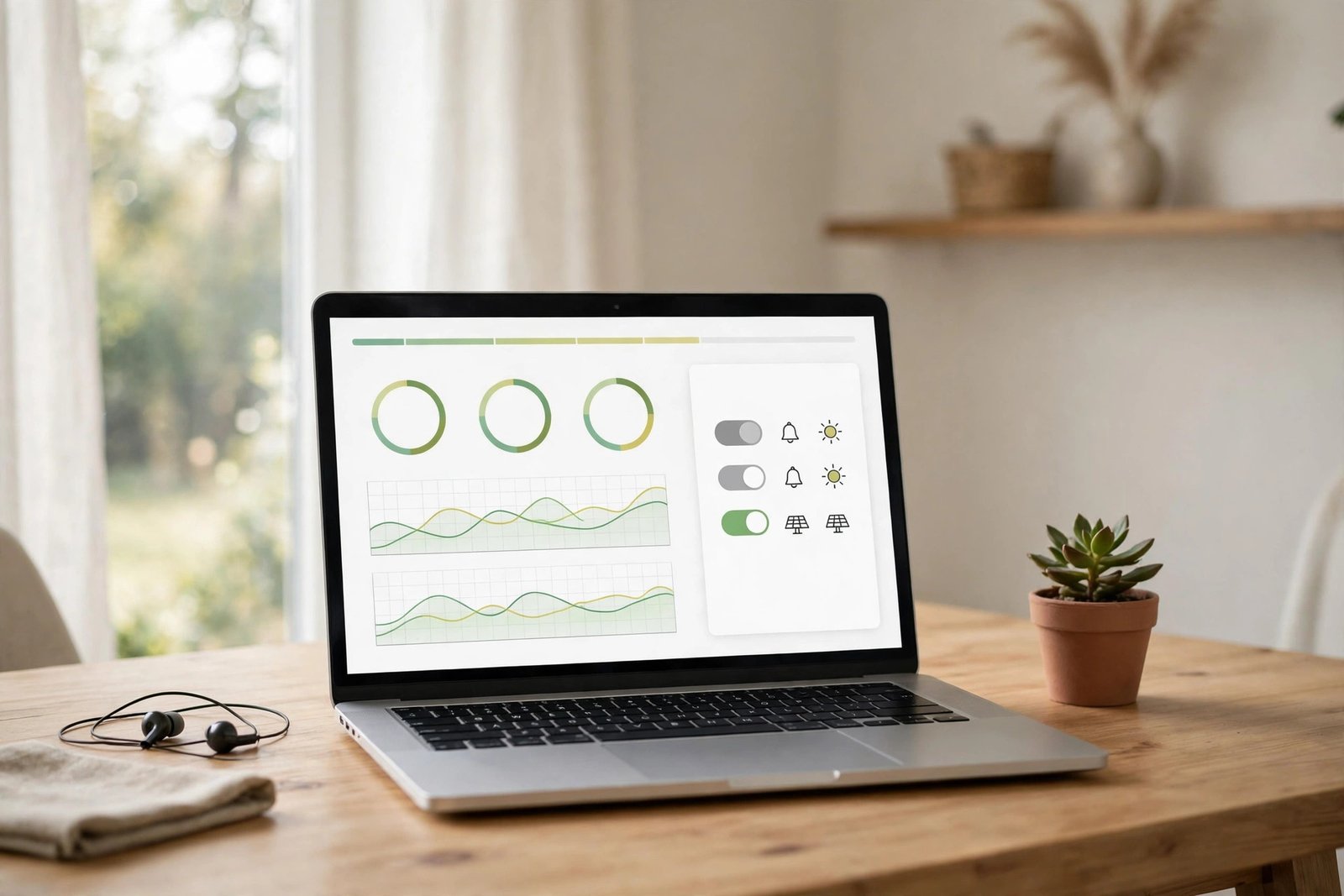
- Switch on push notifications for the events you want. Most apps list them as toggles, for example “Inverter fault”, “Production low”, “System offline” and “Grid disconnected”.
- Choose the devices. If you have more than one inverter or site, make sure alerts are switched on for each one, not just the first.
- Set the thresholds. Some apps let you choose the level that triggers an alert — for example, “alert me if production falls below 50% of expected”. See the thresholds section below for sensible starting values.
- Save and confirm. Some apps ask you to confirm the change by email or with a code sent to your phone.
- Check the app’s notification permissions on your phone (Settings, then Apps, then the monitoring app) and make sure notifications are allowed, including on the lock screen.
If your app has no alerts section at all, check the manufacturer’s online portal on a computer — the full settings are often only available there. If neither the app nor the portal offers alerts, look at the third-party options in the advanced section below.
How to Set Up Email Alerts
Email alerts are usually set up in the online monitoring portal rather than the phone app.
- Log in to the monitoring portal on a computer using the same account as your app.
- Open the notifications or alerts page — often under Settings, Account, or Site Settings.
- Add your email address (and a second one if you want a partner, family member or property manager to be copied in).
- Tick the events you want emailed. Common choices are inverter faults, production drops, communication loss, and daily or weekly summary reports.
- Check your spam folder after saving. Automated solar emails are sometimes filtered as spam the first time. Mark the sender as safe so future alerts reach your inbox.
- Decide on summary emails too. Many portals can send a daily or weekly production summary. These are not urgent alerts, but they make it easy to spot a slow decline — a weekly email showing falling output is often the first sign of a developing problem.
Keep the alert email address separate from an address you rarely check. An alert that lands in an inbox you open once a month is not much use.
How to Set Up SMS and Push Alerts
SMS alerts are less common than app and email alerts, but some manufacturers and installers offer them.
- Check whether your manufacturer offers SMS alerts. Look in the portal’s notification settings, or search the manufacturer’s support pages for “SMS alerts” or “text alerts”.
- Add and verify your mobile number. You will usually receive a code by text to confirm the number belongs to you.
- Choose which events trigger a text. Because texts are intrusive, reserve them for the most serious events: inverter faults and zero production during daylight.
- Check the cost. Some manufacturers include a limited number of free texts per month; others charge. If SMS is not free, app push notifications are usually a good enough replacement.
- Ask your installer. Some installers run their own monitoring service and will text or call you when your system reports a fault. If yours offers this, it can be the most reliable option of all — but confirm what it covers and whether there is a fee.
If your system has no SMS option, a practical workaround is to allow the monitoring app to send push notifications with sound, and to keep the app signed in on your main phone. For most homeowners, that is fast enough.
Choosing Sensible Alert Thresholds
The threshold is the line an alert uses to decide something is wrong. Set it too high and you will be woken by false alarms on cloudy days. Set it too low and real faults will slip past. These starting values work for most home systems.
Zero production during daylight
Set this to trigger if the system produces nothing at all between, say, 10 a.m. and 2 p.m. on a day when the sun is up. A short delay (30 to 60 minutes of zero output) avoids alerts for a brief passing cloud. If your system produces zero watts on a sunny day, work through our zero-watts diagnostic checklist.
Production drop compared with a normal day
A drop of 20 to 25% below the expected output for the time of day is a sensible trigger. A single cloudy day can reduce output by much more than this, so good monitoring systems compare against the weather or against the same time on recent days, not against a fixed number. If your app only allows a fixed daily target, set it generously low — for example, alert if today’s total is below half of a normal day’s total — and rely on the zero-production alert for sudden faults.
Inverter error codes
Switch these on for all fault codes, with no threshold to choose. Any error code the inverter reports is worth knowing about. A red light on the inverter usually comes with an error code, and the alert will normally arrive before you notice the light.
Communication loss
Set this to trigger after 2 to 6 hours without data. Shorter than that and a brief Wi-Fi dropout will wake you; longer than that and you may miss a whole day of production data. Note that a communication-loss alert tells you the monitoring is down, not necessarily that the panels have stopped working — the system may still be generating while the app shows nothing.
Battery alerts (hybrid systems)
Useful thresholds are: battery state of charge below 10 to 20% when it should be charging, battery not charging at all during daylight, and any battery fault code. Battery alerts matter most in winter, when low charge can leave you without backup power during a grid outage.
Which Alerts to Switch On First
If your system offers a long list of alert options, start with these five. They cover the faults that cost the most money when missed.
| Alert | Why it matters | Priority |
|---|---|---|
| Zero production in daylight | System down, losing a full day’s generation | Essential |
| Inverter fault or error code | The inverter itself reports a problem | Essential |
| Communication loss (2–6 hours) | You are flying blind; faults could be happening unseen | Essential |
| Production drop of 20–25% | A string or panel group has failed | High |
| Grid disconnection | System not exporting; possible grid or inverter fault | High |
| Battery fault or very low charge | No backup power; possible battery damage | High (hybrid systems) |
| Inverter overheating | Heat shortens inverter life and cuts output | Medium |
| Daily production summary | Easy weekly check for slow decline | Medium |
Switch on the essential ones today, add the high-priority ones this week, and leave the rest off until you are comfortable with the volume of messages. It is better to have five alerts you read than twenty you ignore.
How to Test Your Alerts
An alert you have never tested is an alert you cannot trust. Test the setup once, the same week you configure it.
- Use the app’s test button if there is one. Some monitoring apps and portals have a “Send test notification” or “Send test email” option in the alerts settings. Use it first.
- Check that the message arrives on your phone and in your email inbox, and that you can open it. If it goes to spam, mark the sender as safe.
- Temporarily lower a threshold. If there is no test button, set a production-drop threshold very low for one day — for example, alert if production falls below 90% of expected — and see whether an alert arrives on a normal day. Remember to put the threshold back afterwards.
- Simulate a communication loss only if it is safe. Switching off the monitoring gateway’s power for a few minutes can test the offline alert, but do not switch off the inverter itself to test alerts, and never open electrical equipment.
- Confirm the alert reaches the right people. If a partner or property manager is on the list, ask them to confirm they received the test.
- Repeat the test after any change — a new phone, a changed email address, an app update, or a firmware update can silently break notifications.
Reducing False Alarms
False alarms are the biggest reason people switch alerts off — and an alert system that is switched off helps nobody. Most false alarms have a fixable cause.
- Cloudy weather: a production-drop alert that fires on every cloudy day is set too tightly. Raise the threshold, add a time delay (for example, only alert if low output lasts more than an hour), or switch to a weather-aware comparison if your app offers one.
- Seasonal change: winter days are shorter and weaker. A fixed daily production target set in summer will fire all winter. Lower the target each season, or use a percentage of the expected output for that month instead of a fixed number.
- Wi-Fi dropouts: if your communication-loss alert fires every time the router restarts, increase the delay before the alert triggers, or move the monitoring gateway closer to the router. See our guide on fixing a monitoring app that keeps going offline.
- Night-time alerts: make sure alerts are limited to daylight hours. An alert that fires at 2 a.m. because production is zero is useless — production is always zero at night.
- Duplicate alerts: if you receive the same alert by app, email and text, keep one fast channel (app) and one record channel (email), and switch off the third.
- Alert fatigue: if you get more than a few alerts a week and most are not real problems, your thresholds are wrong. Loosen them and re-test, rather than switching everything off.
What to Do When an Alert Fires
An alert is the start of a diagnosis, not a diagnosis itself. Work through these steps in order.
- Read the alert properly. Note the time, the type of fault, and any error code. Take a screenshot — it helps if you need to report the fault later.
- Open the monitoring app and look at the live data. Is production zero, low, or normal? Is the inverter online? Is there an error code shown?
- Check the obvious causes. Is it cloudy or raining? Has there been a power cut in your area? Is your home Wi-Fi working? Many alerts have simple explanations.
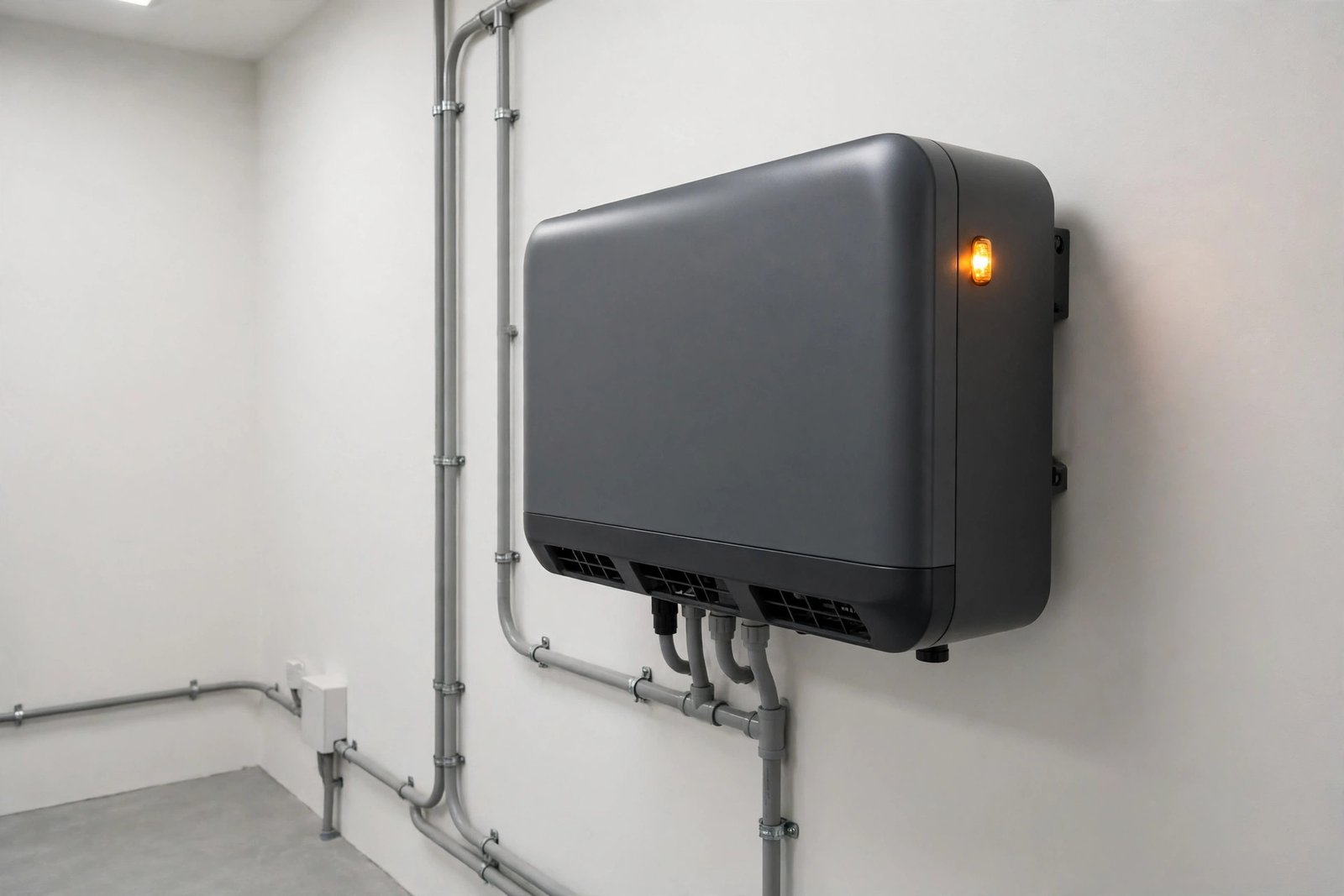
- Look at the inverter from a safe distance. Note the colour of any status lights and whether the display shows an error. Do not open the inverter cover and do not touch any wiring.
- Wait and watch. Some faults clear themselves — for example, an inverter that trips on a brief grid voltage spike will usually restart on its own within a few minutes. Give it 15 to 30 minutes before taking further action, unless you can see or smell something wrong, in which case act immediately and call a professional.
- Try a safe reset if the fault persists. A basic inverter reset (switching it off and on following the manufacturer’s shutdown procedure) fixes some faults. Follow our step-by-step guide on safely resetting your solar inverter and do not improvise.
- Contact your installer or the manufacturer if the alert keeps coming back, the inverter shows an error code you do not recognise, or a reset does not help. Give them the error code, the time of the alert, and your screenshots.
- Keep a simple log. Write down the date, the alert, and what you did. A log showing the same fault three times in a month is strong evidence for a warranty claim.
Advanced Options: Third-Party Monitoring
If your inverter’s own app has weak or no alert features, third-party monitoring can fill the gap.
- Manufacturer add-ons: some brands sell an upgraded monitoring gateway or a premium monitoring subscription that adds better alerts, panel-level data and weather-aware comparisons.
- Independent monitoring platforms: several independent services connect to common inverter brands and offer their own alerts, dashboards and reports. Check compatibility with your exact inverter model before paying for anything, and check whether the service stores your data outside your country if that matters to you.
- Installer monitoring: many installers offer an ongoing monitoring service for a monthly fee. They watch your system and contact you when something goes wrong. This is worth considering for larger systems, rented properties, or owners who do not want to manage alerts themselves.
- Home automation: if you already run a smart-home system, some inverter brands expose production data that can trigger your own rules — for example, a phone notification if output stays at zero for an hour. This needs some technical confidence and is not necessary for most homeowners.
Before buying any third-party service, confirm it works with your inverter model, check the ongoing cost, and read what happens to your data if you cancel. The built-in alerts from your manufacturer are free and are enough for most homes.
Safety Warnings
Setting up alerts is safe — it involves only an app and a website. But acting on an alert can bring you into contact with live electrical equipment, so keep these rules in mind.
- Never open the inverter cover or touch exposed wiring, even if an alert tells you there is a fault inside. Solar systems carry high DC voltages that can be lethal, and panels generate voltage whenever light falls on them, even when the inverter is switched off.
- Do not climb on the roof to inspect panels because an alert fired. Roof work is dangerous, and a fault found from the ground is still a fault — call a professional to go up there.
- If you smell burning, see smoke, or hear buzzing or crackling from the inverter or panels, switch the system off using the AC isolator if you can do so safely, stay away from the equipment, and call your installer or an electrician immediately. If there is a fire risk, call the emergency services.
- Only follow the manufacturer’s shutdown and restart procedure when resetting an inverter. Never improvise with isolators and breakers.
- Keep children and pets away from the inverter and any exposed cabling while you investigate an alert.
When to Call a Professional
Alerts are a warning system, not a repair service. Call a qualified solar technician or electrician if:
- The same alert fires repeatedly, or a reset does not clear the fault.
- The inverter shows an error code you do not recognise, or the manual says the fault needs a technician.
- Production stays at zero on a sunny day after you have checked the obvious causes.
- You suspect damaged wiring, a burning smell, a hot inverter casing, or any sign of heat damage.
- The fault involves the battery, especially swelling, leaking, a strong smell, or a battery fault code.
- Your system is still under warranty or an installer maintenance contract — a DIY repair attempt can void the warranty, so let the installer handle it.
- You are unsure about anything. A short call to a professional is cheaper than a damaged inverter or an injury.
FAQs
Do I need alerts if I check my solar app every day?
Daily checks are excellent, but alerts cover the hours you are not looking — overnight faults, faults while you are on holiday, and faults on days you simply forget. Alerts and manual checks work best together.
Will alerts drain my phone battery?
No. Push notifications use almost no battery. The monitoring app itself may use some battery if it runs in the background, but on most phones the effect is negligible.
Can I get alerts for a system at a second property?
Yes, if both systems are registered under the same monitoring account. Make sure alerts are switched on for each site separately, and label each site clearly so you know which property an alert refers to.
Why did I get a production alert on a cloudy day?
Your threshold is probably too tight, or it compares against a fixed target that does not account for weather. Raise the threshold, add a time delay, or switch to a weather-aware comparison if your app offers one.
My monitoring app has no alert settings. What can I do?
Check the online portal on a computer — the full settings are often only available there. If neither has alerts, update your firmware, ask your installer whether they offer a monitoring service, or look at a compatible third-party monitoring platform.
Will alerts work if my Wi-Fi goes down?
App and email alerts depend on your home internet connection to reach you, and the monitoring gateway depends on it to send data. If the Wi-Fi goes down, the system cannot report — which is itself a useful alert once the connection returns, because you will see a gap in the data. A mobile-data (SIM) connection for the gateway avoids this, but it is not standard on most home systems.
Do alerts cost anything?
App push notifications and email alerts are free on almost all systems. SMS alerts sometimes carry a small charge, and premium monitoring services charge a subscription. Check the costs before switching on SMS.
How often should I review my alert settings?
Check them once a season — thresholds set for summer will not suit winter — and after any change: a new phone, a new email address, a firmware update, or work done on the system.
Conclusion
Automated alerts are one of the simplest and most valuable things you can do for your solar system. They cost nothing on most systems, take less than half an hour to set up, and they turn a silent failure into a message on your phone within minutes. Start with the essentials — zero production in daylight, inverter error codes, and communication loss — choose realistic thresholds, and test the setup so you know it works. Then add a production-drop alert and a weekly summary email, and review the settings once a season. Your solar system will still need the occasional human check, but with alerts in place, a fault will no longer be able to hide for weeks while your electricity bill quietly grows.