
Quick answer: If your solar monitoring app is not updating or shows your system as offline, the problem is almost always the connection between your inverter and your home Wi-Fi — not the panels themselves. Your solar panels keep generating electricity even when the app goes dark, so check the inverter first: if its display or indicator lights show it is producing power, your system is fine and only the reporting is down. The most common fixes are restarting your router, restarting the inverter’s communication unit, and re-entering the Wi-Fi password after a router change. Work through the steps below in order — most people get their data back in under 15 minutes without touching any wiring. Never open the inverter or touch live cables; if the inverter itself shows no power, a fault light, or a burning smell, call a qualified solar technician.
Table of Contents
- App Offline vs. System Down: Know the Difference
- How Solar Monitoring Actually Works
- First: 5 Quick Checks Before You Touch Anything
- Step-by-Step: Reconnect Your Inverter to Wi-Fi
- Common Causes and How to Fix Each One
- When the Wi-Fi Signal Is Too Weak
- After a Router Change, New Password, or Power Cut
- Still Offline? What to Try Next
- Will You Lose Your Solar Data?
- Preventing Future Dropouts
- When to Call a Professional
- FAQs
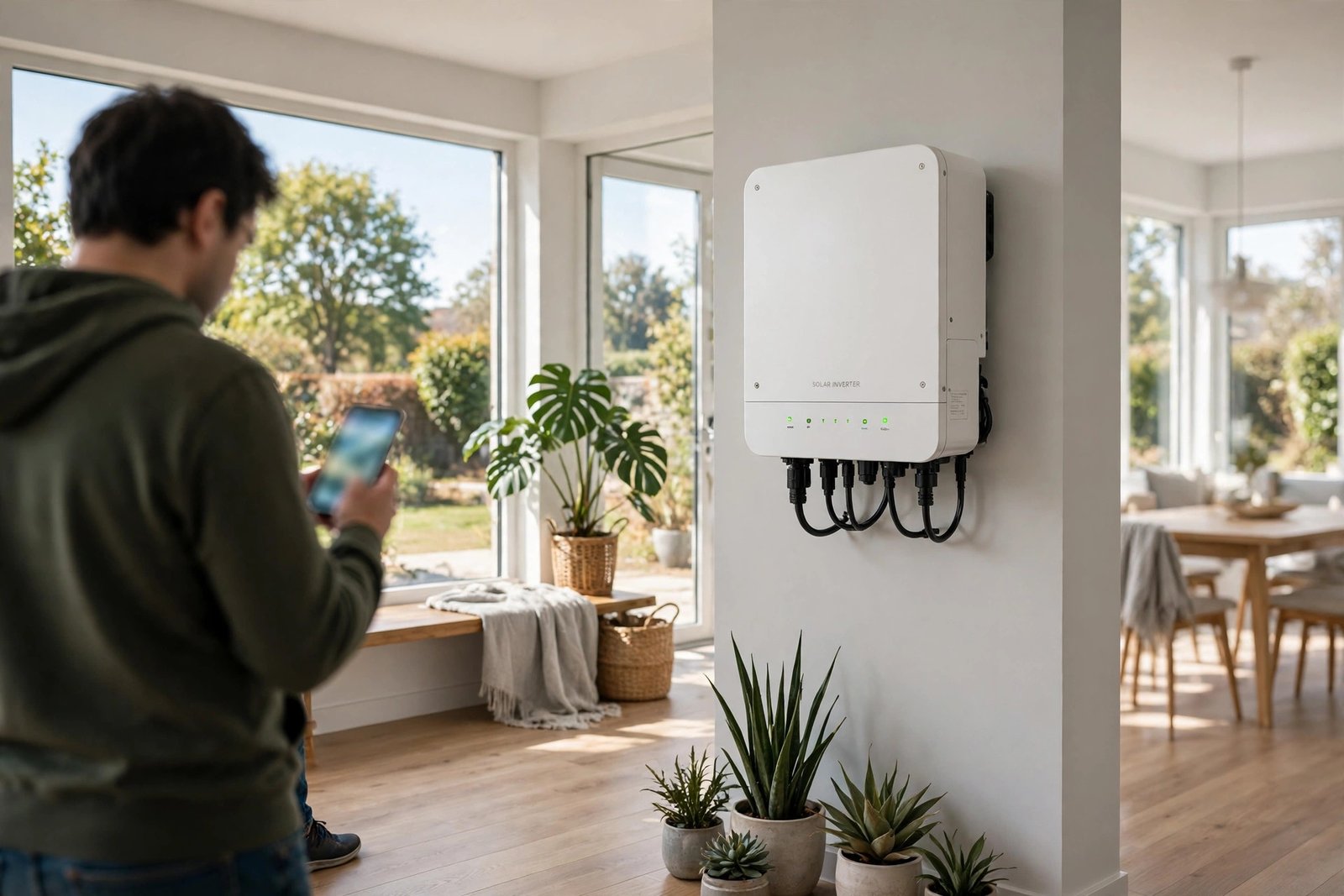
App Offline vs. System Down: Know the Difference
The first thing to understand is that your monitoring app and your solar system are two separate things. Your panels, inverter, and battery do the work of generating and converting electricity. The monitoring app only reports what they are doing. When the app stops updating, it usually means the reporting link has broken — the panels are still on the roof, still catching sunlight, and still feeding power into your home or the grid.
That distinction matters because it tells you where to look. If the inverter’s own display shows normal production figures, or its green light is on, your system is working and the problem is purely a communication fault. If the inverter display is blank, dark, or flashing a fault code, then the system itself has a problem, and the app is only reflecting that. In that case, skip to the section on still being offline, and see our guide on solar inverter not turning on for the full diagnostic steps.
Here is a simple way to tell them apart:
| What you see | What it usually means | What to do |
|---|---|---|
| App shows old data or “offline”, inverter display shows normal output | Wi-Fi or communication fault only | Follow the Wi-Fi reconnection steps below |
| App shows zero production and inverter display is blank or dark | System itself may be off or faulty | Check breakers and the inverter, then see our zero-watts checklist |
| App shows zero production but inverter display shows normal output | Communication fault, panels are fine | Follow the Wi-Fi reconnection steps below |
| App and inverter both show an error code | A real system fault | Note the code and call a qualified technician |
If you are unsure which case you are in, start at the inverter. It is the one piece of equipment that tells the truth even when the app cannot.
How Solar Monitoring Actually Works
Understanding the chain helps you find the broken link. In most home systems, data travels in four steps:
- The inverter measures production. It converts DC electricity from your panels into AC electricity for your home, and it records how much energy is produced, moment by moment.
- A communication unit sends the data. This is usually a built-in Wi-Fi module, a small Wi-Fi dongle plugged into the inverter, or a separate gateway box mounted nearby. Some systems use a wired Ethernet cable or a cellular connection instead.
- Your home router carries the data to the internet. The communication unit joins your home Wi-Fi network, just like a phone or a laptop, and sends the data through your router.
- The manufacturer’s cloud server delivers it to your app. Your phone app pulls the latest figures from that server — it does not talk to the inverter directly.
A break at any one of these four points will make the app stop updating. Most breaks happen at step 2 or 3: the inverter’s Wi-Fi module has dropped off the network, the router has restarted and handed out a new address, the Wi-Fi password has changed, or the signal between the router and the inverter is too weak. Breaks at step 4 — the manufacturer’s server being down — are rarer, but they do happen, and there is nothing you can fix at home when they do. If your neighbours with the same brand of inverter are all offline at the same time, it is almost certainly a server outage, and the data usually returns on its own.
Some systems also use a CT clamp or a smart meter to measure how much electricity your home is using versus exporting. If only the consumption figures look wrong while production updates normally, the problem is usually with that meter or clamp, not the Wi-Fi. That is a job for your installer, not a Wi-Fi fix.
First: 5 Quick Checks Before You Touch Anything
Before you change any settings, run through these five checks. They take two minutes and solve a surprising number of “offline” problems.
1. Is your home internet working?
Open a website or a video on your phone while connected to your home Wi-Fi. If the internet is down for everything, the inverter cannot report either. Fix the broadband first — restart the router, check with your internet provider — and the solar app should come back on its own.
2. Is the app itself the problem?
Close the app completely and reopen it. Then check whether the app needs an update in your phone’s app store. An outdated app can show stale data or fail to log in, even when the inverter is reporting fine. Try logging out and back in. If you have a web portal for the same monitoring account, open it on a computer — if the portal shows fresh data, the inverter is fine and only the phone app is misbehaving.
3. Look at the inverter’s lights
Go to the inverter and look at its indicator lights or small display. A steady green light usually means it is producing power normally. A flashing green light can mean it is starting up or in standby. A red or amber light, or a fault code on the display, means the inverter itself has a problem. Write down anything the display says before you restart anything — that message is valuable for a technician later.
4. Check the date of the last update
Most apps show a “last updated” time. If the data is only a few minutes old, the app may simply be slow to refresh — some systems only upload every 5 to 15 minutes, and some update even less often at night when the panels are not producing. If the last update was hours or days ago, the connection is genuinely down.
5. Did anything change recently?
Think back: did you get a new router, change the Wi-Fi password, move the router to another room, have a power cut, or update the inverter’s firmware? Any of these can break the connection. A new Wi-Fi password is the single most common cause of a suddenly offline inverter, because the inverter still holds the old password and quietly fails to connect.
Step-by-Step: Reconnect Your Inverter to Wi-Fi
If the quick checks point to a connection problem, work through these steps in order. Do not skip ahead — each step rules out one possible cause.
Step 1: Restart your router
Unplug your router from the power socket, wait a full 30 seconds, then plug it back in. Wait another two to three minutes for it to fully restart and for your other devices to reconnect. Then check the app again. Routers sometimes stop talking to one device while everything else works fine, and a restart clears that up. This alone fixes a large share of offline inverters.
Step 2: Restart the inverter’s communication unit
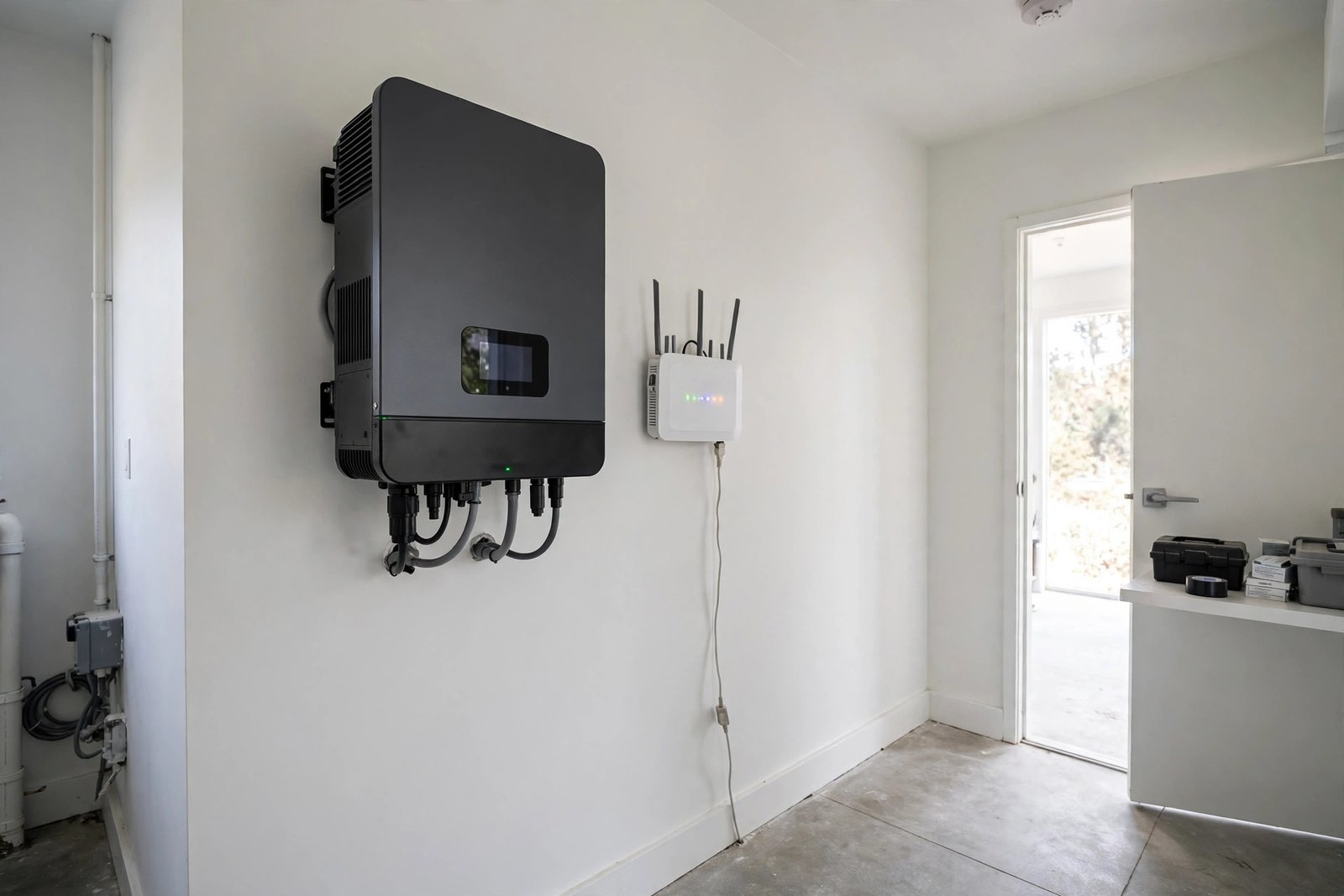
Many inverters have a separate communication module — a small dongle plugged into the side or bottom of the inverter, or a gateway box mounted on the wall nearby. If yours has a dongle, switch the inverter off using its own isolator switch (follow the shutdown procedure in your manual — usually DC isolator off first, then AC isolator), wait 30 seconds, remove the dongle, push it firmly back in, and switch the inverter back on in reverse order. If your inverter has built-in Wi-Fi with no dongle, a normal inverter restart does the same job. For the safe shutdown and restart procedure, see our guide on how to safely reset your solar inverter. Never open the inverter casing or touch internal wiring — the restart described here uses only the external switches.
Step 3: Check the inverter’s own Wi-Fi network
Many inverters broadcast their own temporary Wi-Fi network for setup — often named after the brand or the inverter model, such as “SolarEdge” or “Growatt”. On your phone, open the Wi-Fi settings and look for a network name like that. If it appears, the inverter’s Wi-Fi module is alive and broadcasting. If no such network appears and your model is supposed to have one, the communication module may have failed or lost power.
Step 4: Re-enter the Wi-Fi password
This is the step most people need after a router or password change. The exact method varies by brand, but the pattern is the same:
- Connect your phone to the inverter’s own setup Wi-Fi network (step 3), or open the manufacturer’s setup app.
- Open the inverter’s settings or configuration page in the app or a browser.
- Select your home Wi-Fi network from the list and type the current password carefully — Wi-Fi passwords are case-sensitive, and a single wrong character will fail silently.
- Save, and let the inverter reconnect. This can take two to five minutes.
- Check the monitoring app after ten minutes to confirm fresh data is arriving.
Some brands handle this differently: a few use a small button on the inverter to start setup mode, others need you to scan a QR code on the inverter’s label. Your inverter manual or the manufacturer’s support page will show the exact steps for your model. Do not guess at brand-specific settings — if the steps above do not match your equipment, follow the manual.
Step 5: Check which Wi-Fi band the inverter is using
Most inverters only support the 2.4 GHz Wi-Fi band. Many modern routers combine 2.4 GHz and 5 GHz under a single network name, and some inverters struggle with that. If your router lets you split the bands into two separate network names, connect the inverter to the 2.4 GHz network. The 2.4 GHz band also travels further through walls, which helps if the inverter is in a garage or loft.
Common Causes and How to Fix Each One
| Cause | Typical signs | Fix |
|---|---|---|
| Wi-Fi password changed | App went offline the day the password changed | Re-enter the new password in the inverter setup (step 4 above) |
| New router installed | App offline since the router swap; other devices fine | Reconnect the inverter to the new network, or set the new router to the old network name and password |
| Router restarted or firmware updated | App offline after a power cut or router update | Restart the router, then restart the inverter’s communication unit |
| Weak Wi-Fi signal | App drops out often, especially at certain times of day | Move the router closer, add a Wi-Fi extender, or use a wired connection |
| Too many devices on the network | Random dropouts; inverter connects then drops again | Reduce congestion or give the inverter a reserved IP address in the router settings |
| Inverter firmware problem | Offline after a firmware update, or after months of normal use | Check for a firmware update in the manufacturer’s app; if unsure, contact the installer |
| Faulty Wi-Fi dongle or gateway | Inverter’s own setup network never appears; no lights on the dongle | Reseat the dongle; if it stays dead, ask the installer or manufacturer for a replacement |
| Manufacturer server outage | Many users offline at once; inverter display normal | Wait — check the manufacturer’s status page; nothing to fix at home |
| Power cut or tripped breaker | Inverter display blank; app shows zero | Check the AC breaker and isolators; see our zero-watts checklist |
When the Wi-Fi Signal Is Too Weak
Inverters are often installed in garages, lofts, or on outside walls — the worst spots in a house for Wi-Fi. Thick walls, metal garage doors, and distance from the router all weaken the signal. An inverter that connects fine in summer can start dropping out in winter if the router was moved, or if a new metal appliance now sits between the two.
To test the signal, stand next to the inverter with your phone connected to your home Wi-Fi and look at the signal strength. If your phone shows only one bar, or the connection keeps dropping, the inverter will struggle too. Practical fixes, in order of cost:
- Move the router closer if you can — even a few metres, or moving it out from behind a television cabinet, can make a real difference.
- Add a Wi-Fi extender or mesh node halfway between the router and the inverter. Place it where it still gets a decent signal from the router; an extender placed too far away only repeats a weak signal.
- Use a powerline adapter to carry the network through your home’s electrical wiring to a point near the inverter, then connect the inverter by Ethernet cable or to the adapter’s Wi-Fi.
- Run an Ethernet cable from the router to the inverter if your model has an Ethernet port. A wired connection is the most reliable option of all, and it removes Wi-Fi from the equation entirely.
- Ask about a cellular gateway. Some manufacturers offer a small 4G gateway for sites where home Wi-Fi cannot reach the inverter. There may be a small ongoing data cost, so check before ordering one.
Avoid the temptation to put a second router right next to the inverter with a different network name and password — that just adds another network to maintain, and the inverter will still drop off if that router restarts. One well-placed extender or a wired connection is a better long-term answer.

After a Router Change, New Password, or Power Cut
These three events cause most offline inverters, and each has a simple recovery path.
New router
The easiest fix is to set the new router to the same Wi-Fi network name (SSID) and password as the old one. The inverter will then reconnect automatically, because as far as it can tell, nothing has changed. If you cannot do that — for example, the new router was set up by your internet provider — follow step 4 above to re-enter the new network details in the inverter.
New Wi-Fi password
Every device in the house needs the new password, and the inverter is no exception. Unfortunately, unlike a phone, it will not prompt you. You have to open the inverter’s setup and type the new password in yourself. This is the single most commonly missed step after a password change, and it is worth checking first whenever the app goes offline on the same day the password changed.
Power cut
After a power cut, the router and the inverter restart at different speeds. The inverter may try to connect before the router is ready, fail, and then not try again for a long time. Restarting the router first, waiting for it to settle, and then restarting the inverter’s communication unit (step 2) usually sorts this out. If your area has frequent power cuts, a small UPS for the router keeps the network alive through short outages and prevents this race from happening at all. If your system produces zero watts after a power cut, work through our solar system producing zero watts during sunny days checklist as well.
Still Offline? What to Try Next
If you have restarted the router, restarted the communication unit, re-entered the password, and checked the signal, and the app is still not updating, try these in order:
- Check the manufacturer’s status page or social media. A server outage affects thousands of users at once and is usually announced within an hour. If there is an outage, wait — there is nothing wrong with your equipment.
- Try a different connection type. If the inverter has an Ethernet port, connect a cable temporarily. If data starts flowing over Ethernet, the Wi-Fi module is the problem, not the inverter.
- Check for a firmware update. Some monitoring apps show the inverter’s firmware version in the settings. If an update is available, install it — but only while the system is producing normally and you have time to watch it. Never update firmware during a storm or just before leaving the house. If you are not confident, ask your installer to do it.
- Reset the communication unit to factory settings. This is a last resort, and the method is brand-specific — it usually involves holding a small button for several seconds. After a factory reset you will need to set up the Wi-Fi connection from scratch, so only do this when you have the manual and the Wi-Fi password in front of you.
- Test the inverter’s own display. If the inverter display shows normal production but nothing reaches the app, the fault is in the communication path. If the display shows no production on a sunny day, the fault is in the system itself — check breakers, isolators, and our guide on how to test solar panel voltage and amperage with a multimeter if you are comfortable using one safely, or call a technician.
Keep notes of everything you tried and what happened. If you end up calling your installer or the manufacturer’s support line, they will ask for the inverter model, serial number, firmware version, and exactly what the display shows. Having those ready saves a lot of time.
Will You Lose Your Solar Data?
This is the question most owners ask first, and the answer is reassuring: in most cases, no. Most modern inverters store production data on board for days or even weeks, and when the connection comes back, they upload the missing history to the cloud. You may see a gap in the app’s graph while the inverter is offline, but the figures usually fill in once it reconnects.
There are exceptions. Some older monitoring systems only store a few hours of data, and some gateway boxes store none at all — if they cannot send the data immediately, it is gone. If your system has been offline for more than a week, check with the manufacturer whether your model backfills missing data. Either way, the electricity your panels produced during the outage is not lost — it still powered your home or went to the grid. Only the record of it may be incomplete.
One practical tip: if you rely on monitoring data for a warranty claim or for feed-in tariff records, take a photo of the inverter’s lifetime energy reading on its display while the app is down. That number is stored in the inverter itself and is the most reliable record you have.
Preventing Future Dropouts
Once your app is updating again, a few small steps make the connection far more stable:
- Give the inverter a fixed IP address. In your router’s settings, reserve an IP address for the inverter (sometimes called a DHCP reservation). This stops the router from occasionally handing the inverter a new address, which can confuse some monitoring systems.
- Keep the inverter on the 2.4 GHz band. Do not let it hop between 2.4 GHz and 5 GHz. A separate 2.4 GHz network name for the inverter is the simplest way to guarantee this.
- Keep the router’s firmware updated, and restart the router every month or two. A router that has been running for months without a restart is more likely to drop a device silently.
- Note your Wi-Fi details near the inverter. Keep a small card with the network name and password in the inverter’s manual folder, so the next password change is a five-minute job, not a mystery.
- Check the app weekly. A quick glance at the app once a week catches a dropout early, while the inverter still holds the missing data and the fix is still simple. Waiting months can mean lost history and a harder diagnosis.
- Protect the inverter from heat. Inverters in hot lofts or direct sun can overheat and behave erratically, including dropping their connection. Make sure yours has ventilation and shade where possible, and read our guide on how to keep your inverter from overheating.
When to Call a Professional
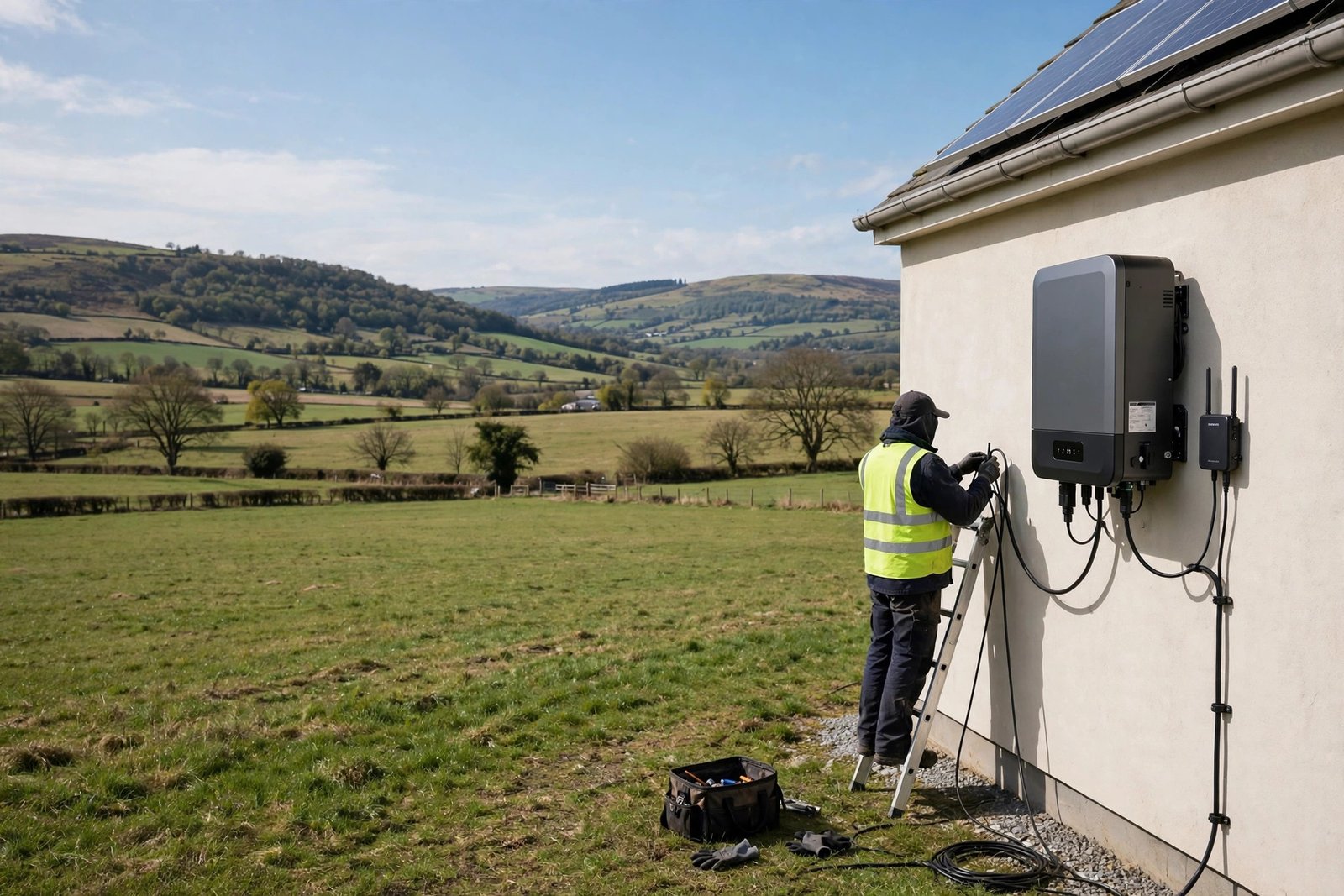
Most Wi-Fi problems are safe for a homeowner to fix, because they involve the router and the inverter’s settings — not live wiring. Call a qualified solar technician or electrician if:
- The inverter display is blank, shows a fault code, or smells of burning.
- A breaker trips repeatedly when you try to restart the system.
- You see damaged, melted, or exposed wiring around the inverter.
- The communication module or dongle appears physically damaged.
- You have tried every step above and the inverter still will not connect, even by Ethernet cable.
- The system is still under warranty — opening the inverter or changing internal settings can void it.
- You are not comfortable working around the inverter at all. There is no shame in that; a short visit from a technician is cheaper than a mistake with mains electricity.
Never open the inverter casing, never touch exposed terminals, and never work on the system in wet conditions or during a storm. Solar panels produce voltage whenever light falls on them, even when the inverter is switched off, so treat every cable as live. If your battery system is involved — for example, if the monitoring fault appeared alongside a battery warning — see our guide on a BMS tripped and a locked solar battery before touching anything.
FAQs
Why is my solar monitoring app not updating?
The most common reason is that the inverter has lost its Wi-Fi connection — usually after a router restart, a password change, a new router, or a weak signal. The panels usually keep working normally; only the reporting stops. Restart the router, then the inverter’s communication unit, and re-enter the Wi-Fi password if it has changed.
Is my solar system still working if the monitoring app is offline?
Usually, yes. The app only reports what the system does; it does not control it. Check the inverter’s own display or indicator lights — if they show normal production, your panels are generating electricity and only the data link is down.
How do I reconnect my solar inverter to Wi-Fi?
Connect your phone to the inverter’s own setup Wi-Fi network, open the manufacturer’s app or setup page, select your home Wi-Fi network, and type the current password. Save the settings and wait a few minutes for the inverter to reconnect. Most inverters only support the 2.4 GHz band, so use that network if your router offers separate bands.
Why does my solar inverter keep disconnecting from Wi-Fi?
Repeated dropouts usually mean a weak signal, an overcrowded network, or the router giving the inverter a different IP address each time. Move the router closer or add an extender, reserve a fixed IP address for the inverter in the router settings, and keep it on the 2.4 GHz band.
How do I change the Wi-Fi password on my solar inverter?
Open the inverter’s setup mode — usually through its own Wi-Fi network and the manufacturer’s app — and enter the new password there. The inverter will not ask you for it; you have to enter it manually after every password change. Keep the password written in the inverter’s manual folder for next time.
Do I need Wi-Fi for my solar panels to work?
No. Solar panels generate electricity without any internet connection at all. Wi-Fi is only needed for remote monitoring, app updates, and firmware updates. Without it, you lose the convenience of the app, but your system keeps producing power — you can read production figures directly from the inverter’s display instead.
Conclusion: A solar monitoring app that stops updating is almost never a sign that your panels have failed. In most cases it is a simple Wi-Fi problem — a changed password, a restarted router, or a weak signal between the router and the inverter — and the fix takes minutes. Work through the checks in order, re-enter the Wi-Fi details when anything about your network has changed, and strengthen the signal if dropouts keep coming back. Keep an eye on the app once a week so the next dropout is caught early, and call a qualified technician whenever the inverter itself shows a fault or you are unsure about anything electrical. Your panels will keep working quietly on the roof either way — the app is just there to let you watch them do it.
Pingback: How to Read Your Solar Monitoring Data to Spot Hidden System Faults Early - Solar Fixing Guide
Pingback: Setting Up Automated Alerts for Solar System Drops and Inverter Errors - Solar Fixing Guide